


Clean Manager: Storage Cleaner
4.5424.00 Reviews
App Specs
- Version
- 1.27.0
- Updated On
- License
- Free
- Downloads
- 5,000,000+
- Developer
- Shlag
- Categories
- Tools
- Platform
- Android
Screenshots

 Analysis by AppCompare
I usually reach for a storage cleaner when I need to make room for something specific, not because I expect a quick scan to transform my phone. That distinction matters with Clean Manager: Storage Cleaner: its appeal is the promise of several cleanup jobs in one place, while the sensible approach is to review what it finds before removing anything. I’d treat it as a hands-on organizer, not a magic speed button.
Choose it for the cleanup you actually need
Before installing any cleaner, I’d ask what is filling the phone: duplicate files, old screenshots, large photos and videos, or clutter that is difficult to sort through manually. This app is a tools app from Quiet Games, and its focus is managing storage rather than replacing a file browser or changing how the phone works. That makes it most relevant when you want a guided place to inspect common sources of digital clutter.
There is a practical difference between finding files and deciding they are safe to delete. A duplicate photo might be a near-identical shot that you still prefer, while a screenshot can contain a receipt, travel detail, or message you need later. My rule with any cleanup tool is to treat its suggestions as a shortlist: inspect the items, keep anything with personal or practical value, and only then confirm a removal.
A convenient home for several storage chores
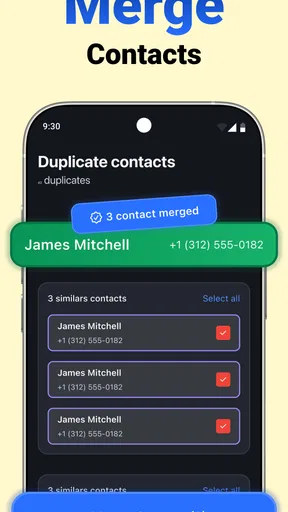
The strongest reason to try Clean Manager: Storage Cleaner is the combination of cleanup tasks suggested by its name and description: removing duplicates, sorting out screenshots, and compressing photos and videos alongside general space cleanup. If you already know you have a camera roll problem, having those related jobs gathered in one tool may be easier than hopping between separate utilities.
Compression is especially useful when you want to keep a video or photo but need to reduce how much room it takes. The trade-off is worth thinking through before you act: smaller files may not retain the same visual quality as originals. I’d use compression selectively, starting with material I mainly keep for casual viewing or sharing, rather than with irreplaceable photos or footage I may want to edit later.
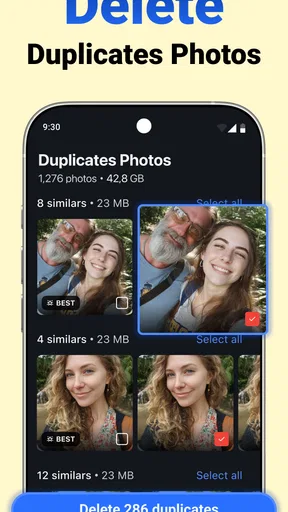
For duplicates, a cautious workflow helps avoid the most frustrating mistake: deleting the version you meant to keep. I’d compare the images or files first, look for differences in crop or clarity, and preserve the one that is easiest to identify and use. If the app groups similar items, that grouping is a prompt to review them, not proof that every item in the group is expendable.
Getting Started with Clean Manager
So, let’s dive right in, shall we? The first thing I noticed when I downloaded the app was its clean, intuitive interface. No clutter, no overwhelming options, just a straightforward design that screams, "I’m here to help you." Setting it up was a breeze. You just follow the prompts, and before you know it, you’re ready to kickstart your phone’s cleanup journey.
Worth Reading Before You Choose

EA SPORTS FC Mobile 26 Is a Bigger Football Game, but It Takes Time

Flipboard Shows What News Apps Must Do Beyond the Feed

Switching to Android Auto Means Rethinking Your Driving Routine

Google Calendar Makes a Crowded Week Easier to Manage

Ludo King Makes the Most of the Minutes Between Plans

Baby Panda World Brings Quick Play to Modern Phones, but Its Game Library Feels Busy
Features That Stand Out
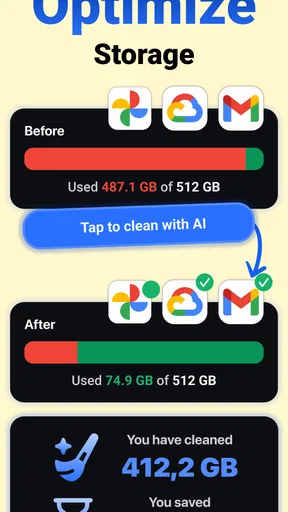
Now, what makes this app a bit of a hero in the app world? For starters, the junk file cleaner. It’s like having a personal Marie Kondo for your phone. It scans and identifies those pesky files that are just taking up space and slowing down your device. Say goodbye to unnecessary cache files, residual junk, and empty folders. The app does a thorough job and even gives you a little report on what it found, which I found pretty neat.
Then there’s the app manager. Ever wondered which apps are silently draining your phone’s performance? This feature gives you a detailed breakdown of each app’s data usage, battery consumption, and more. It even helps you manage and uninstall apps you no longer need, all in one place. Super convenient, right?
Battery and Performance Boost
One of the standout features for me was the battery saver option. Who doesn’t want their phone to last a little longer throughout the day? With a simple tap, the app optimizes your device’s power consumption, extending battery life. And the performance boost? It’s like giving your phone a shot of espresso. It swiftly kills background processes and optimizes RAM usage to keep things running smoothly.
The User Experience
Using the app feels like having a trusty sidekick. The app is designed to be user-friendly, so even if you’re not a tech wizard, you’ll have no trouble navigating through its features. What I particularly loved was the lack of intrusive ads that can often plague free apps. Plus, the app is pretty lightweight, so it doesn’t hog your phone’s resources.
What’s more, the app also supports multiple languages, making it accessible to a wider audience. Whether you’re a tech-savvy teenager or someone who just wants their phone to stop lagging, this app caters to everyone.
Everyday cleanup without the regret
Here’s a realistic way I’d use a cleaner like this: I’m about to record a family event, but my phone warns that storage is tight. Rather than deleting a whole album in a hurry, I’d first inspect screenshots from old errands, then review duplicate candidates, and finally consider compressing a few large clips I don’t need in full quality. That order prioritizes easily replaceable clutter and leaves meaningful media for a deliberate decision.
A less obvious tip is to clean in small batches. Reviewing a manageable group makes it easier to notice when two pictures only look alike or when a screenshot is actually important. I’d also avoid combining a big cleanup with a rushed moment, such as just before a trip or while relying on a phone for directions. The benefit is not merely avoiding a mistaken deletion; it’s making the app’s results understandable enough to trust.
After cleaning, I’d check whether the space I needed is actually available and whether the files I chose to keep still open as expected. That quick check is useful whenever you remove duplicates or compress media. It also helps set realistic expectations: a storage tool can help you make room, but it cannot make a nearly full phone stay empty if you continue saving large videos and screenshots at the same pace.
How it compares with other ways to free space
The usual alternative is to manage files yourself through the phone’s built-in storage controls or file browser. That route can be better if you want direct control and already know where large items are stored. A dedicated cleaner is more appealing when you would rather have likely targets gathered for review, especially duplicates and screenshots. The convenience comes with a responsibility: automated suggestions can reduce searching, but they do not know which memories or records matter to you.
There is also the option of using separate tools for photo organization and media compression. Those may suit someone who wants a specialist workflow for one job and does not mind switching apps. This cleaner’s broader approach may be handier when the task is simply to reclaim room from several kinds of clutter in one sitting. I would not choose it on the assumption that every cleaning action is necessary; I’d use only the parts that solve a real storage problem.
It is also worth separating storage cleanup from general performance claims. Removing files can give you more room, but it does not guarantee that an older or busy phone will suddenly feel fast. I’d judge the app by whether it helps me identify and manage files I no longer need, rather than expecting a one-tap boost to fix every slowdown. If your main concern is a particular app behaving badly, addressing that app directly may be more useful than running a general cleanup.
Limits, trust, and the cost of switching
The app is free to install, but it includes in-app purchases priced from $6.99 to $34.99 per item. I’d start with the free experience and decide whether the available tools solve my problem before paying for anything. That is especially sensible for occasional cleanup: if you only need to clear space once in a while, a paid option may not be worthwhile. Its average rating is 2.7 from around 1.1K ratings, with 94 written reviews, so I would approach it with measured expectations and test the workflow carefully rather than assuming it will suit everyone.
Switching from a built-in file manager is not usually a matter of moving your whole routine; the real cost is learning a new review flow and deciding whether its suggestions are useful. If you try it, begin with low-stakes material such as screenshots you recognize, and leave personal photos or videos untouched until you are comfortable checking each selection. The app is rated for Everyone, has reached over 100K installs, and its current version is 1.2.3. It was released on September 25, 2025, and requires Android 8.0 or later.
I would skip it if you want a completely automatic cleaner that makes every choice for you, or if you are unwilling to inspect files before deleting them. It is also not the right answer when the phone’s storage is mostly occupied by essential apps or media you want to keep; a cleaner cannot create unlimited room without a trade-off. In that situation, reviewing what can be archived or transferred may be a better next step than repeatedly scanning the same files.
Is It Worth It?
So, what’s the verdict on the app? In my opinion, it’s a must-have for anyone looking to optimize their phone’s performance. It’s got all the right tools packed into one app, and it doesn’t bombard you with unnecessary frills. The straightforward approach, combined with its powerful cleaning capabilities, makes it a winner in my book.
If you find yourself constantly battling with storage issues or just want a smoother phone experience, give it a whirl. You can thank me later when your phone starts running like a dream again.
And there you have it, folks! My two cents on Clean Manager: Storage Cleaner. Whether you’re an Android aficionado or an iOS enthusiast, this app might just become your new best friend. And who knows, maybe it’ll even inspire you to declutter those other areas of your life. Happy cleaning!
Pros
- Intuitive user interface for easy navigation.
- Efficiently frees up storage space.
- Boosts device performance noticeably.
- Offers detailed storage analysis reports.
- Quick and responsive customer support.
Cons
- Contains in-app advertisements.
- Limited features in the free version.
- Occasional minor bugs during scans.
- Requires permissions that may concern privacy.
- Performance may vary on older devices.
FAQs for Clean Manager: Storage Cleaner
What are the main features of Clean Manager: Storage Cleaner?
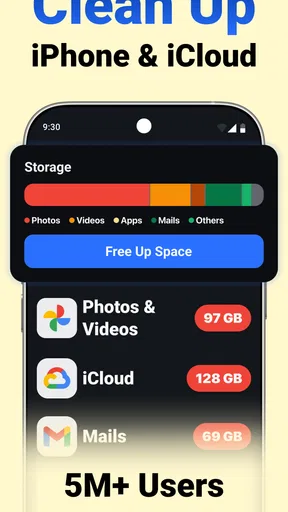
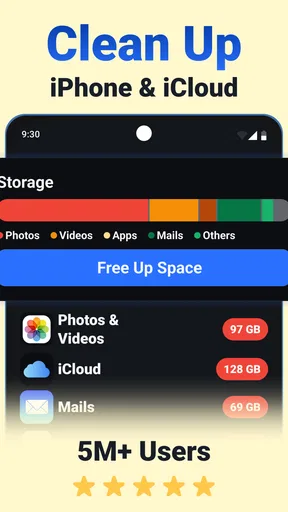
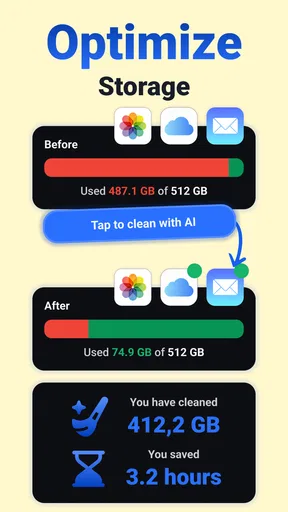
Clean Manager: Storage Cleaner offers a range of features designed to optimize your device's performance. It includes junk file removal, cache cleaning, memory boosting, and app management. This app also provides a detailed analysis of your storage usage, helping you identify large files and apps that consume significant space. Its user-friendly interface makes it easy to navigate and use.
Is Clean Manager: Storage Cleaner safe to use on my device?
Yes, Clean Manager: Storage Cleaner is designed with user safety in mind. It adheres to strict privacy policies, ensuring that your personal data is not stored or shared. The app only accesses necessary files to perform cleaning tasks and does not interfere with your device's core functions. Always download from trusted sources to avoid malware.
Does Clean Manager: Storage Cleaner support both Android and iOS devices?
Clean Manager: Storage Cleaner is available for both Android and iOS platforms. The app is optimized for each operating system, offering tailored features to enhance performance and free up space efficiently. Make sure your device meets the minimum OS version requirements for optimal functionality.
How often should I use Clean Manager: Storage Cleaner to maintain my device?
For optimal performance, it is recommended to use Clean Manager: Storage Cleaner at least once a week. Regular cleaning helps prevent the accumulation of unnecessary files and improves device speed. However, the frequency can be adjusted based on your usage habits and storage needs.
Will using Clean Manager: Storage Cleaner delete important files or apps?
No, Clean Manager: Storage Cleaner is designed to target only unnecessary files such as cache, temporary files, and junk data. It does not delete important files or apps without your consent. The app provides a preview of items to be cleaned, allowing you to select what to keep or remove.


